How to Let BroadTurbo Broadcast When Your Page Already Uses Other Apps for Chats or Orders
You need to change a setting on the Page settings screen, which you can reach in 2 ways:
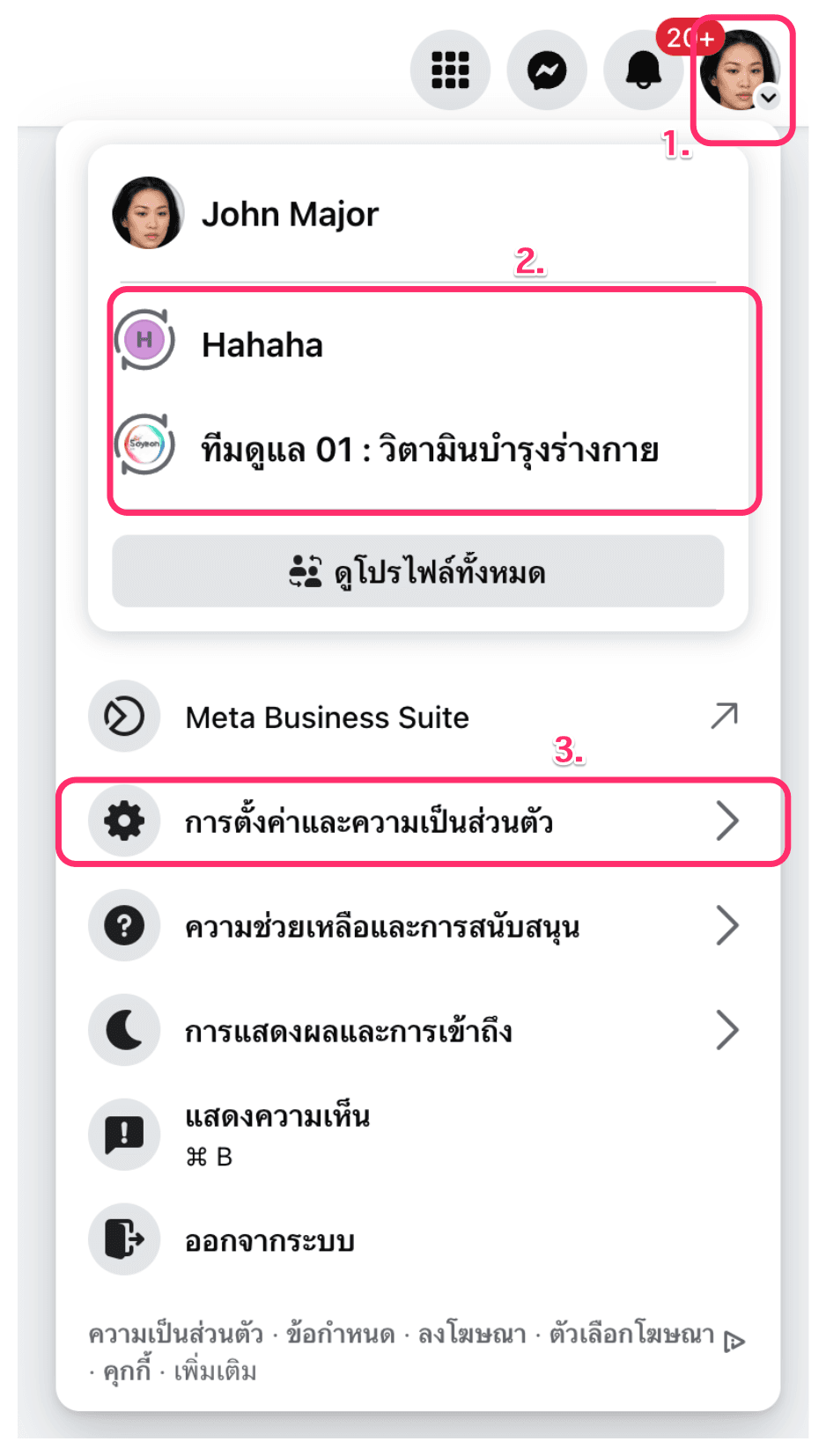
Method 1: Switch from your personal Facebook profile to your Facebook Page
-
Log in to your personal Facebook account, click your profile picture in the top right, and choose the Page you want to set up.
-
Select Settings & privacy → Settings
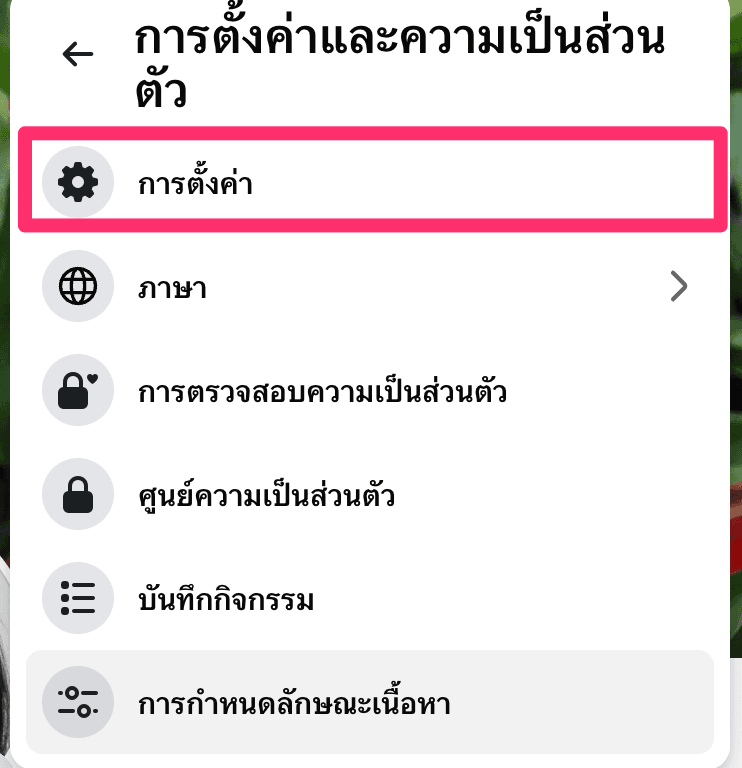
- On the settings screen, select Page settings → Advanced messaging, or simply open this link: https://www.facebook.com/settings/?tab=advanced_messaging
Method 2: Go through Meta Business Suite
-
Log in to your personal Facebook account, click your profile picture in the top right, and choose Meta Business Suite, or open this link:
https://business.facebook.com/latest/settings/profiles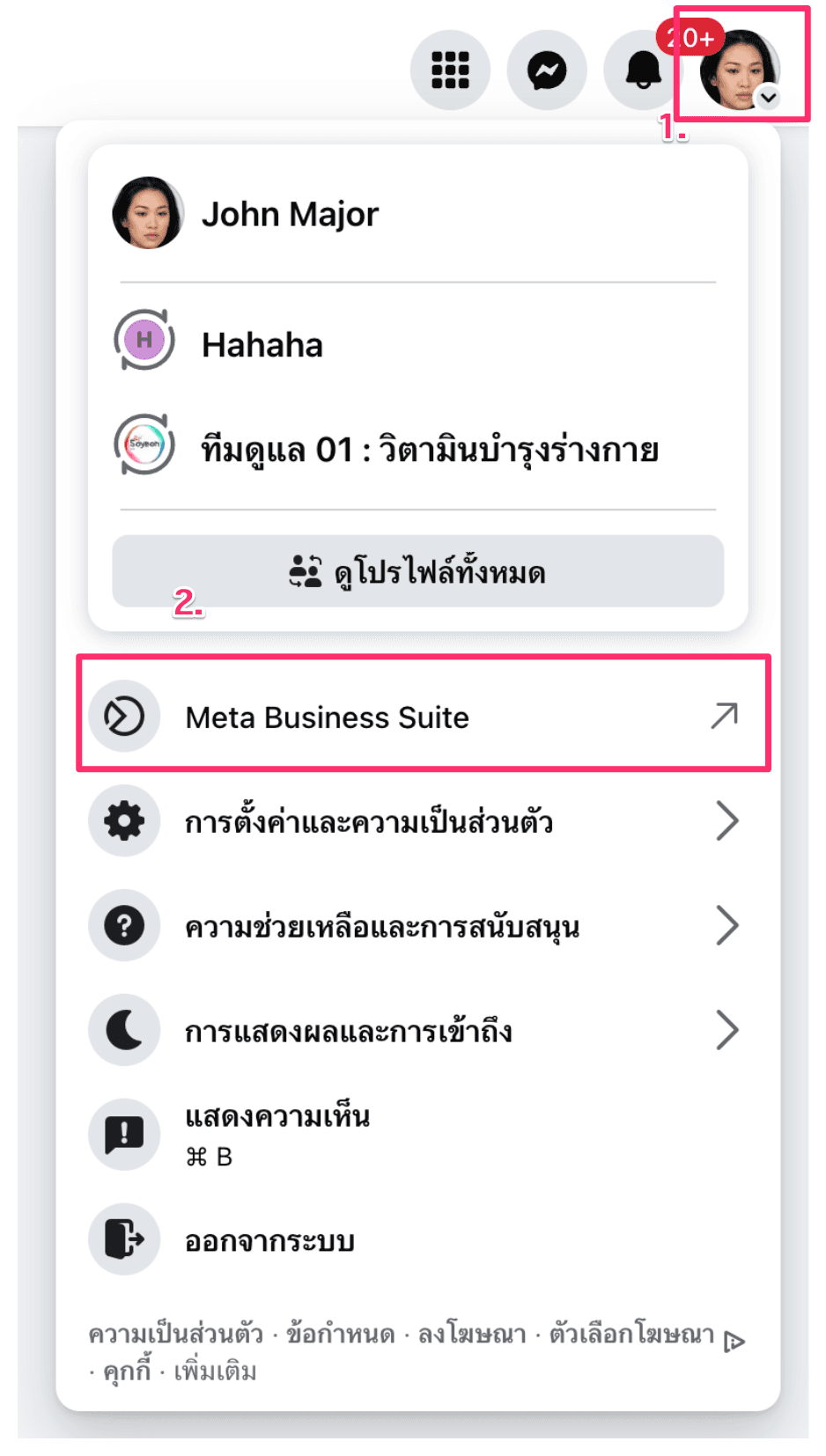
-
In the left-hand menu, click the gear icon for Settings, then select Accounts → Pages
-
A list of your Pages will appear. Click the Page you want, then click Page settings
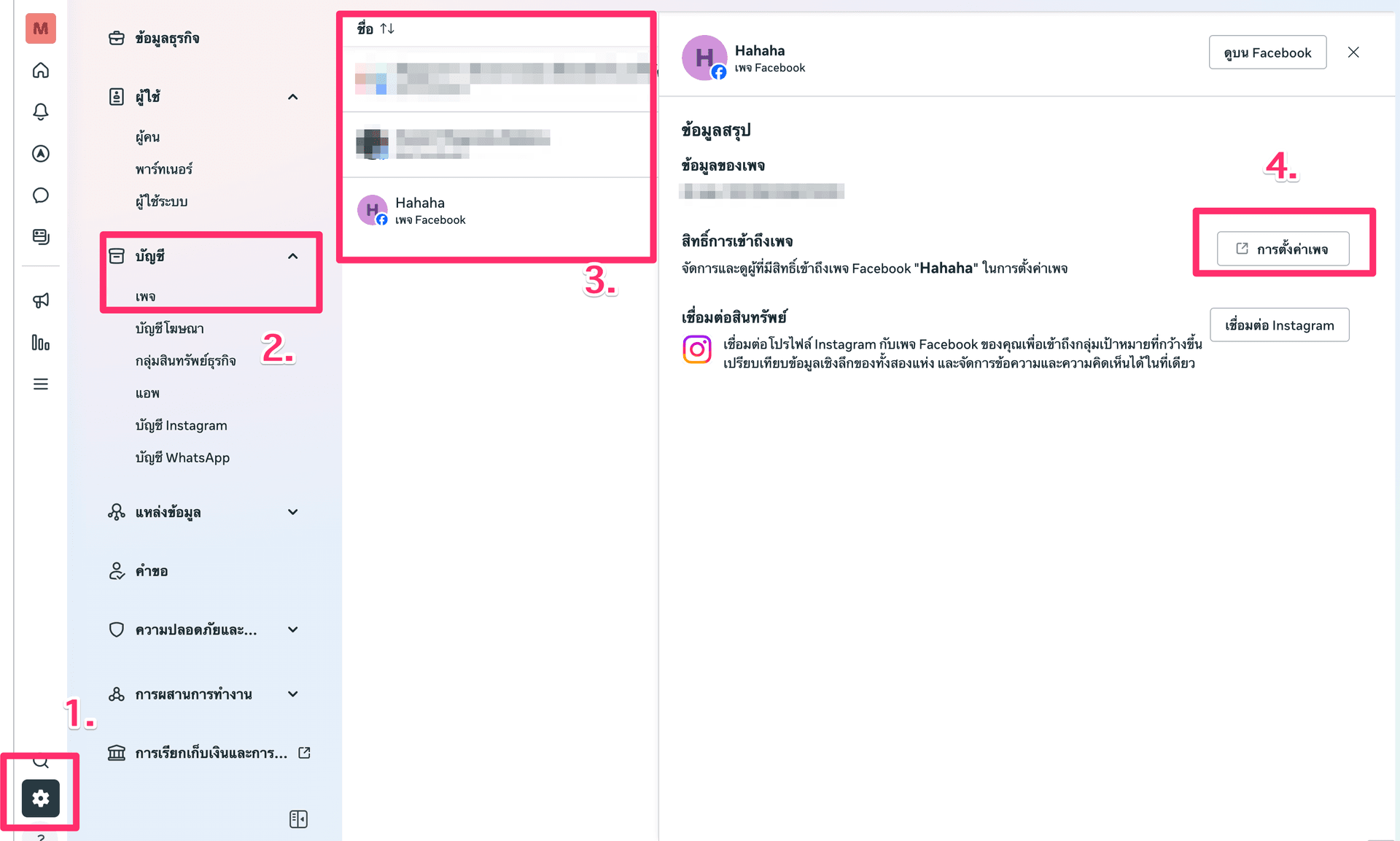
Page settings
-
On the settings screen, select Page settings → Advanced messaging, or simply open this link: https://www.facebook.com/settings/?tab=advanced_messaging
-
At the top of the screen you'll see the apps connected to your Page. Click the Edit button for the Broadturbo app
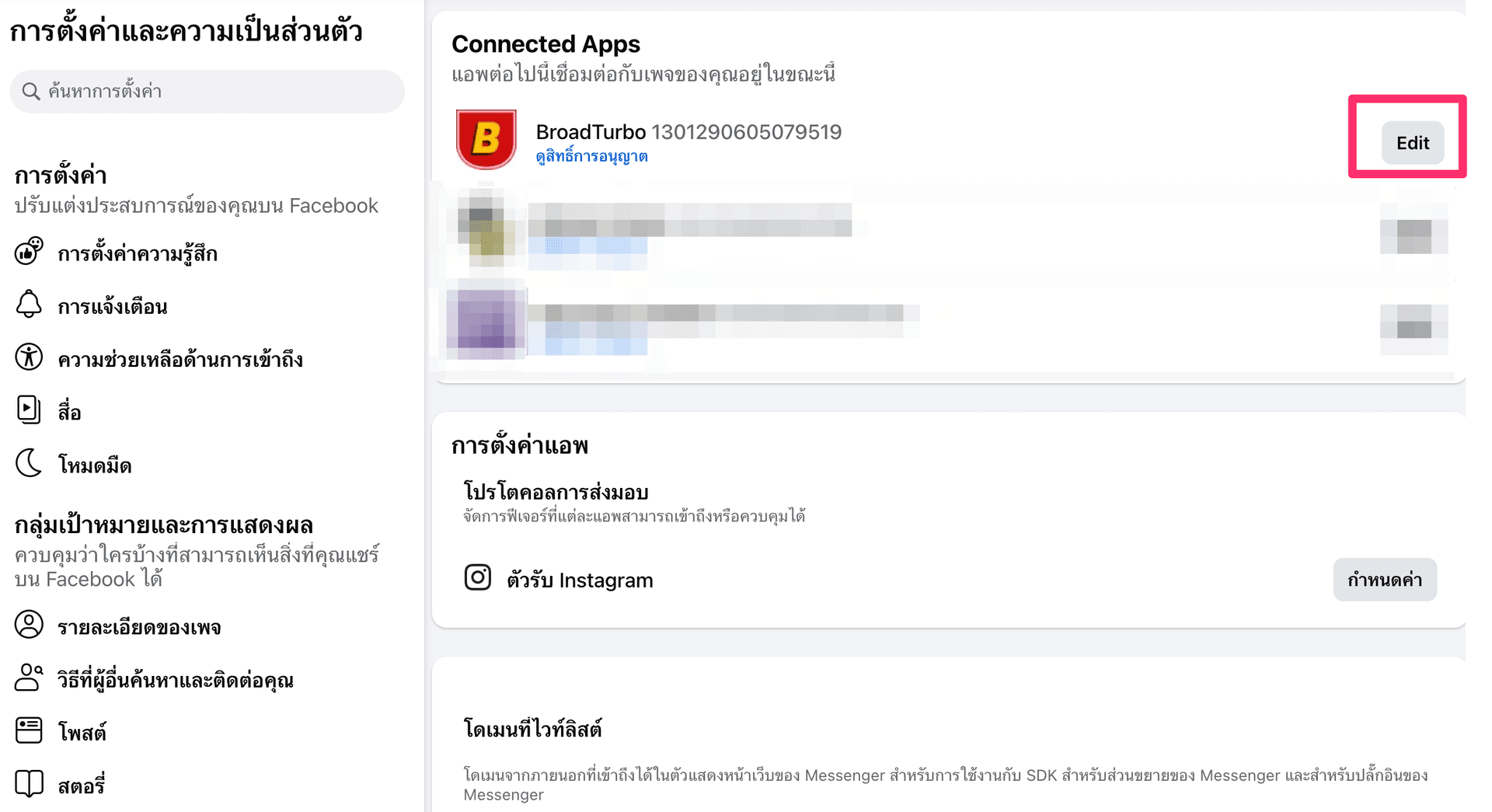
-
Turn on the Access standby channel and Control conversations toggles so they turn blue, then click Save
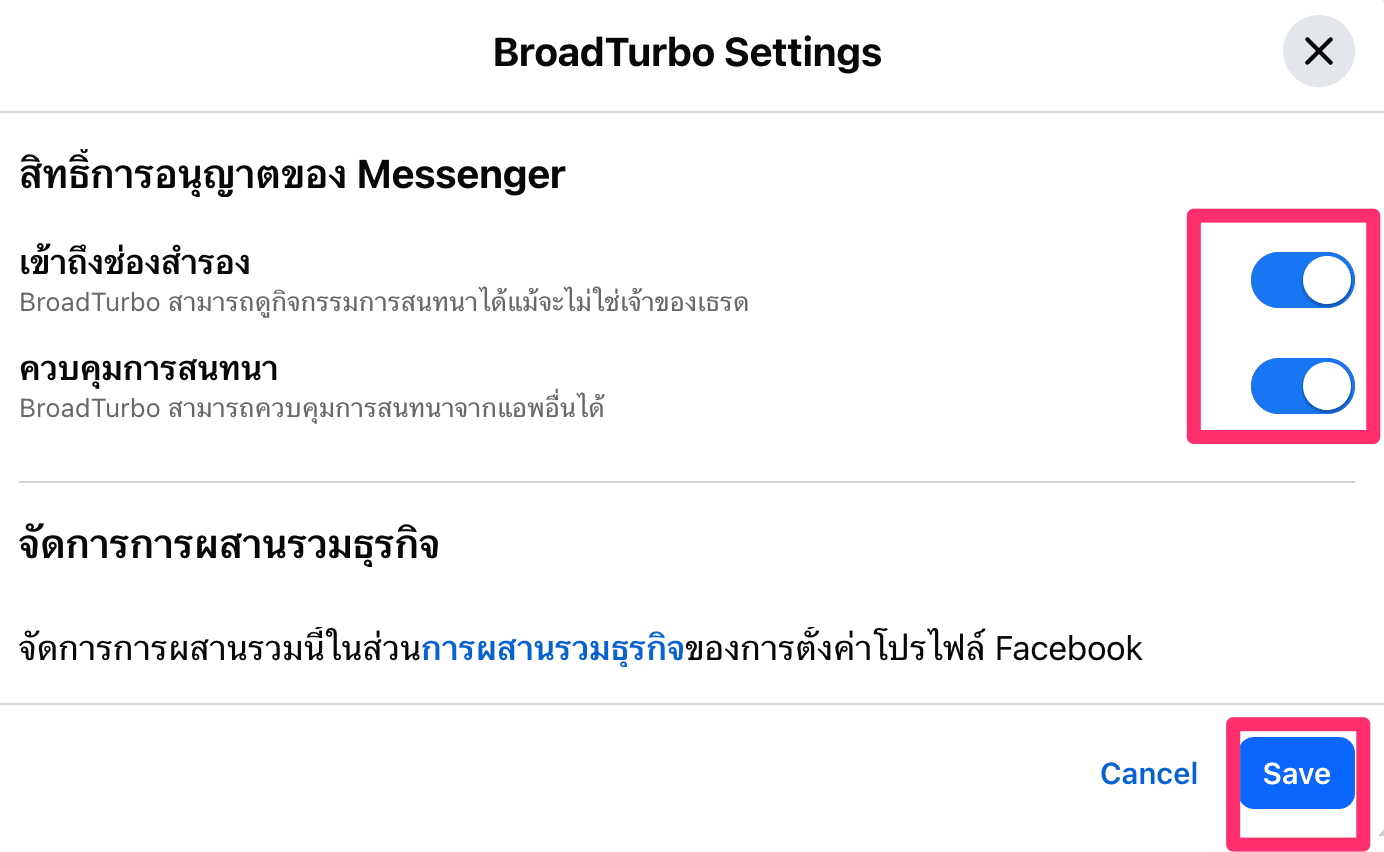
-
Try broadcasting again in BroadTurbo at https://app.broadturbo.com. If everything is set up correctly, the broadcast will go through.
Note
- If you still can't broadcast, contact our team and we'll help you check: https://line.me/R/ti/p/@884uugow