How to Update the BroadTurbo Chrome Extension to the Latest Version
BroadTurbo releases new versions regularly to add features and fix issues so everything runs more smoothly. Chrome usually updates extensions automatically, but if you want to update right away, just follow the steps below.
How to update
-
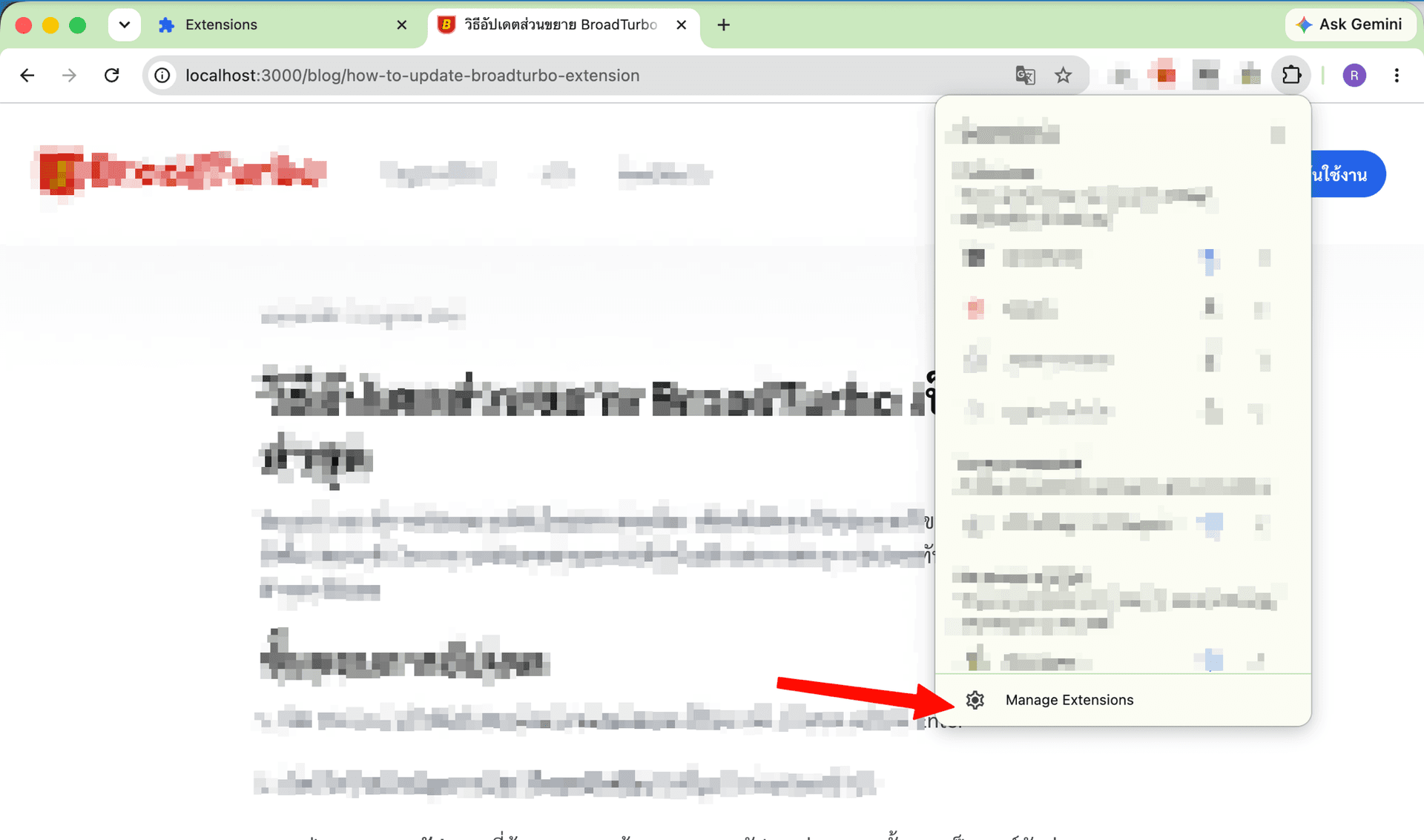
Open the extensions management page: click the puzzle-piece (Extensions) icon in the top-right corner of Chrome and choose Manage Extensions, or type chrome://extensions into the address bar and press Enter
-
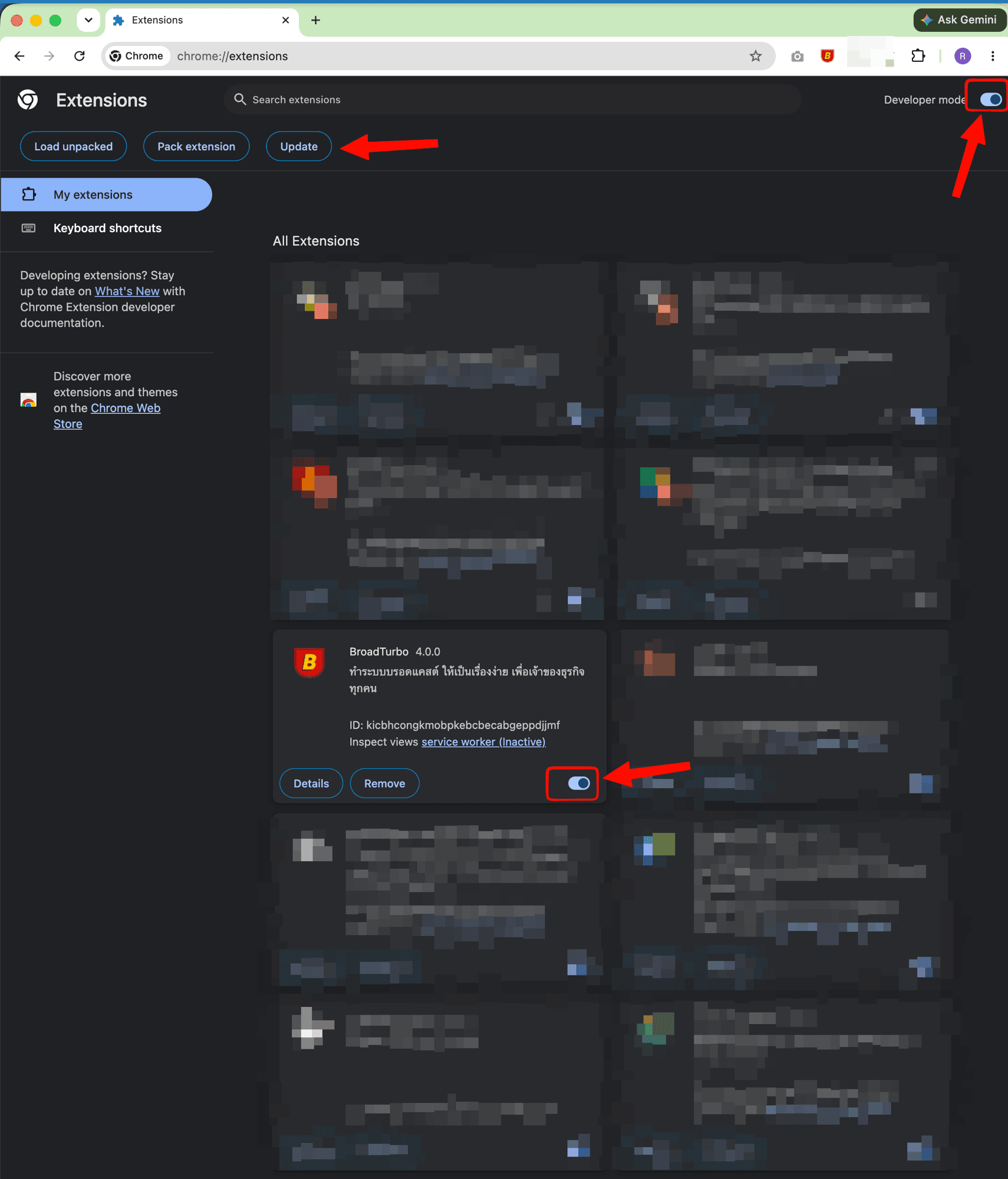
Turn on the Developer mode switch in the top-right corner of the page
-
Click the Update button at the top of the page. Chrome will update all of your extensions to their latest versions
-
Check that the BroadTurbo switch is on (blue) and that the version number has changed to the latest version
If you see a permissions prompt (Action Required)
After an update, Chrome sometimes disables BroadTurbo temporarily and shows the message "BroadTurbo is disabled", asking for permission to access www.broadturbo.com and www.facebook.com. BroadTurbo needs these permissions for broadcasting to work.
Click Accept permissions to turn BroadTurbo back on.
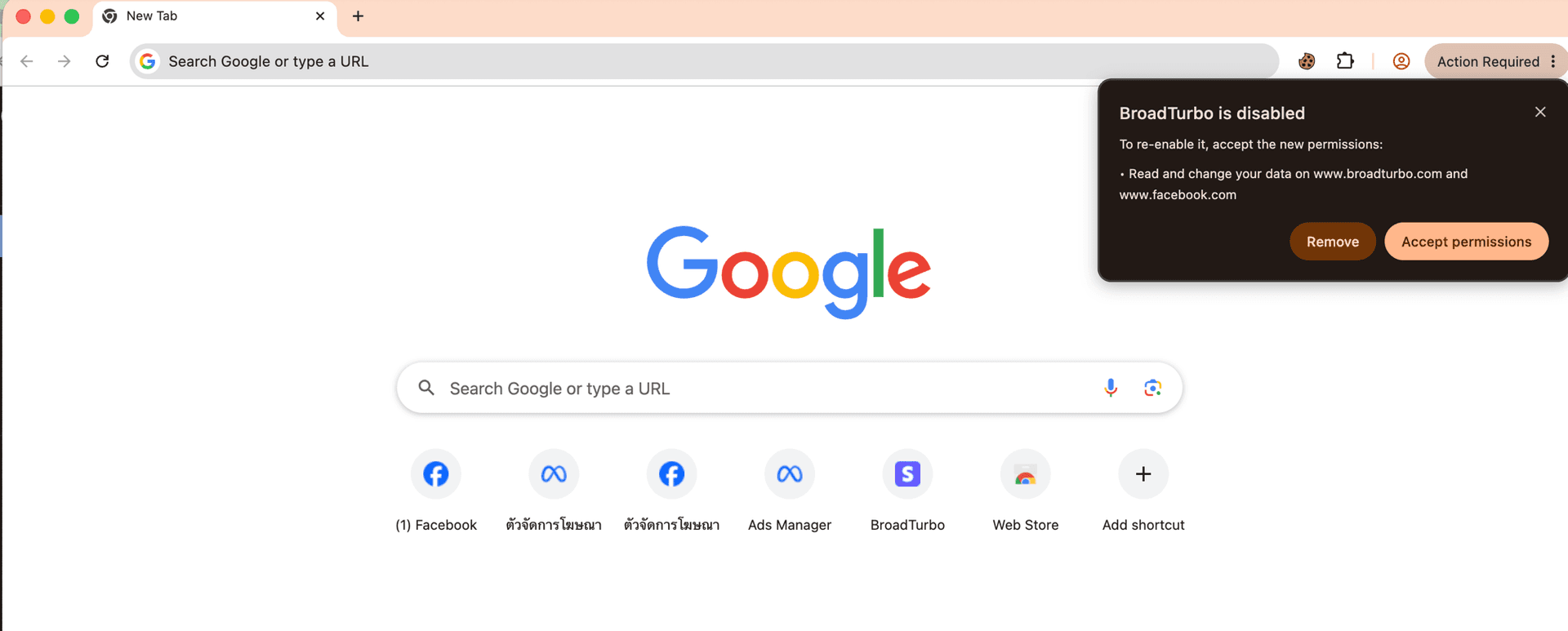
Do not click Remove, because that deletes the extension from your browser.
Pin BroadTurbo to the toolbar
To open BroadTurbo quickly, we recommend pinning its icon to the Chrome toolbar.
-
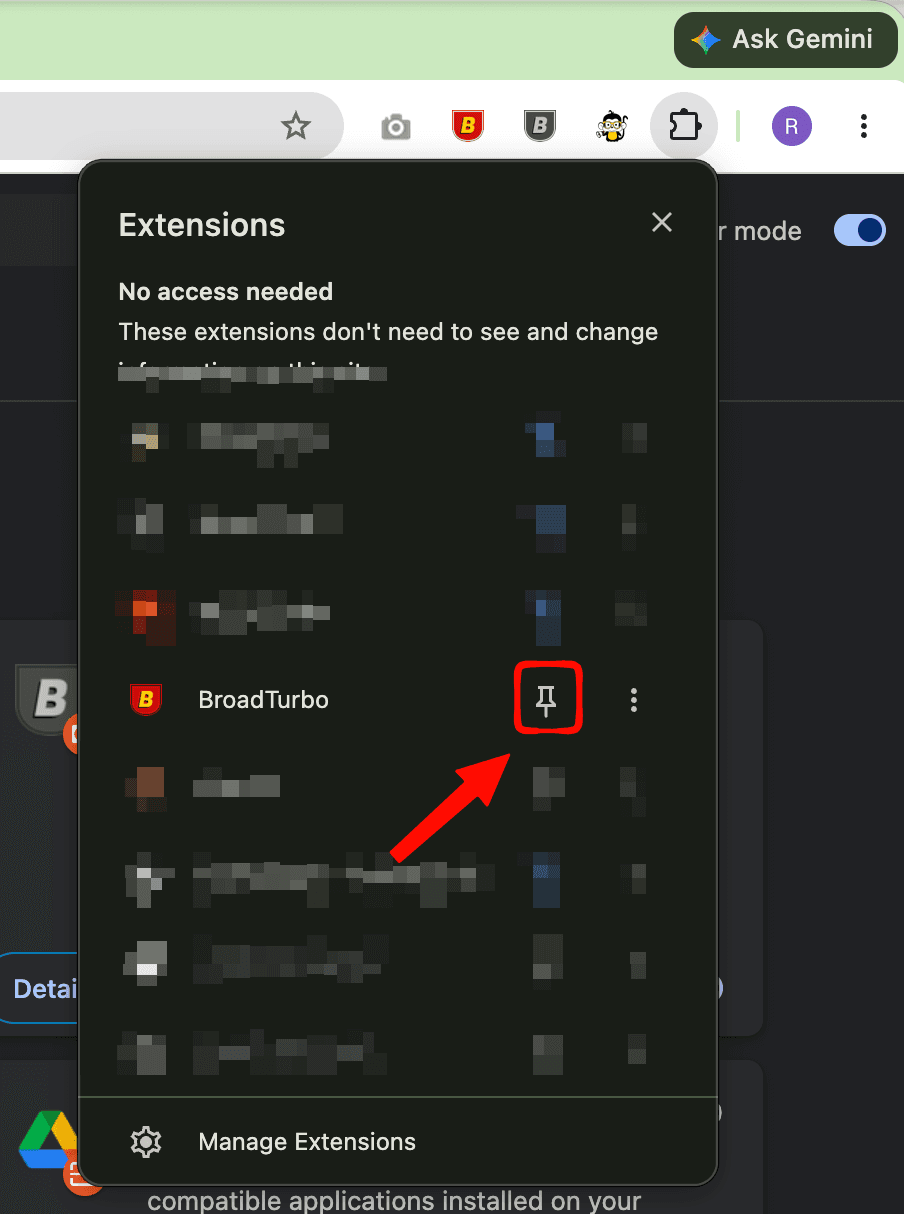
Click the puzzle-piece (Extensions) icon in the top-right corner of Chrome
-
Find BroadTurbo in the list and click the pin icon so the BroadTurbo icon always shows on the toolbar
Notes
- If BroadTurbo still doesn't work after updating, try closing Chrome and opening it again
- If the problem continues, contact our team at https://line.me/R/ti/p/@884uugow