How to Disconnect a Facebook Page from BroadTurbo
If you no longer broadcast from a Page, or you selected more Pages than you needed when you first connected, you can remove a Page from BroadTurbo yourself. Disconnect Facebook, then reconnect and select only the Pages you want to keep. Just follow the steps below.
How to remove a Page
-
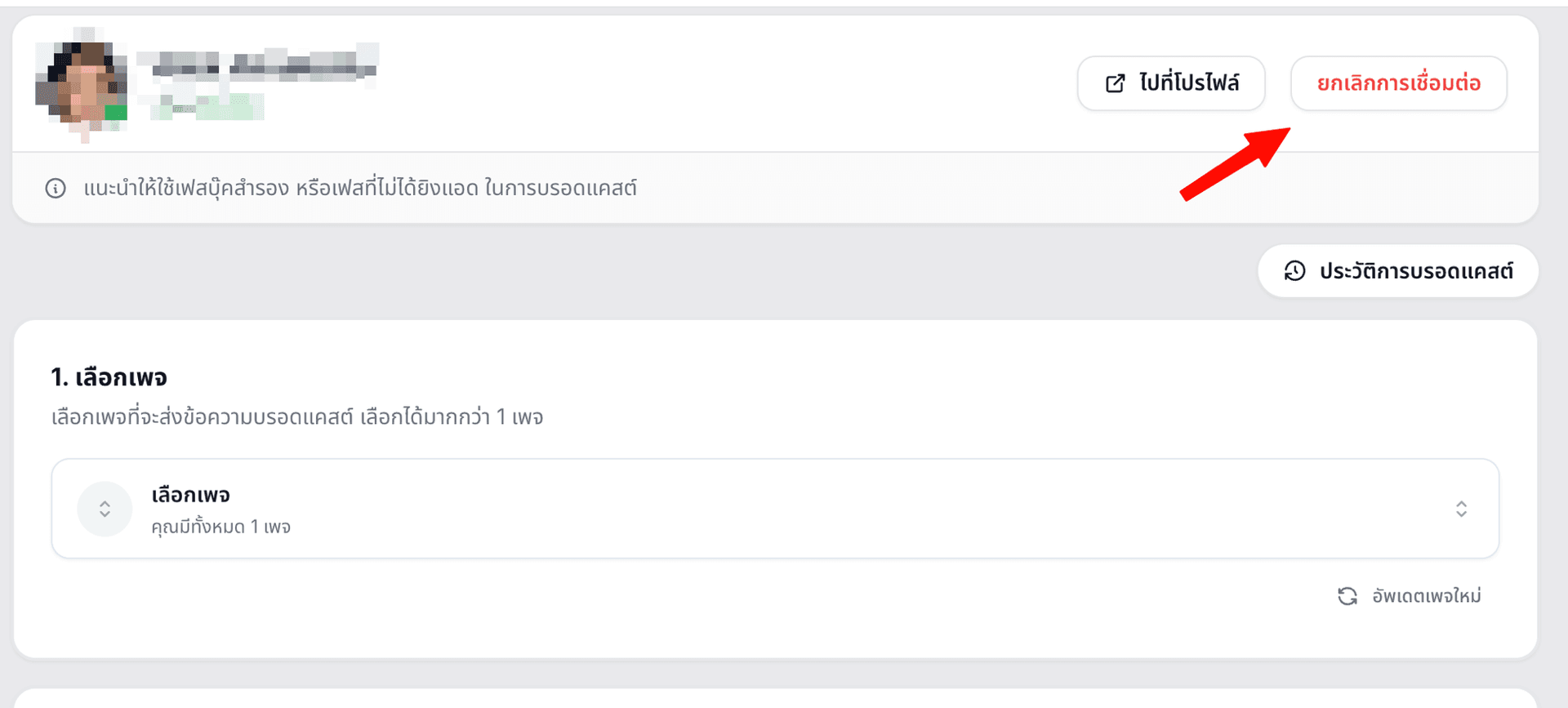
Open BroadTurbo and click the Disconnect button in the top-right corner of the screen
-
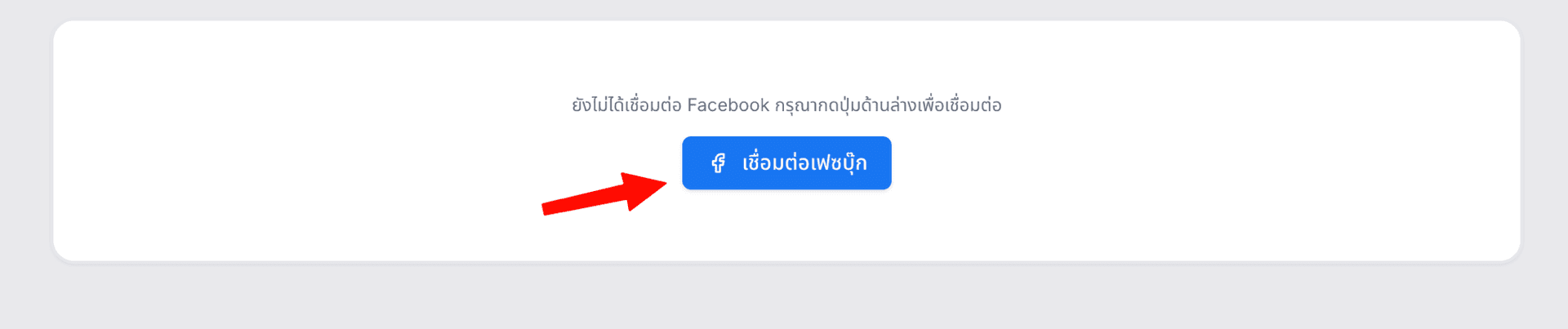
Once you have disconnected, the screen shows a button to connect again. Click Connect Facebook
-
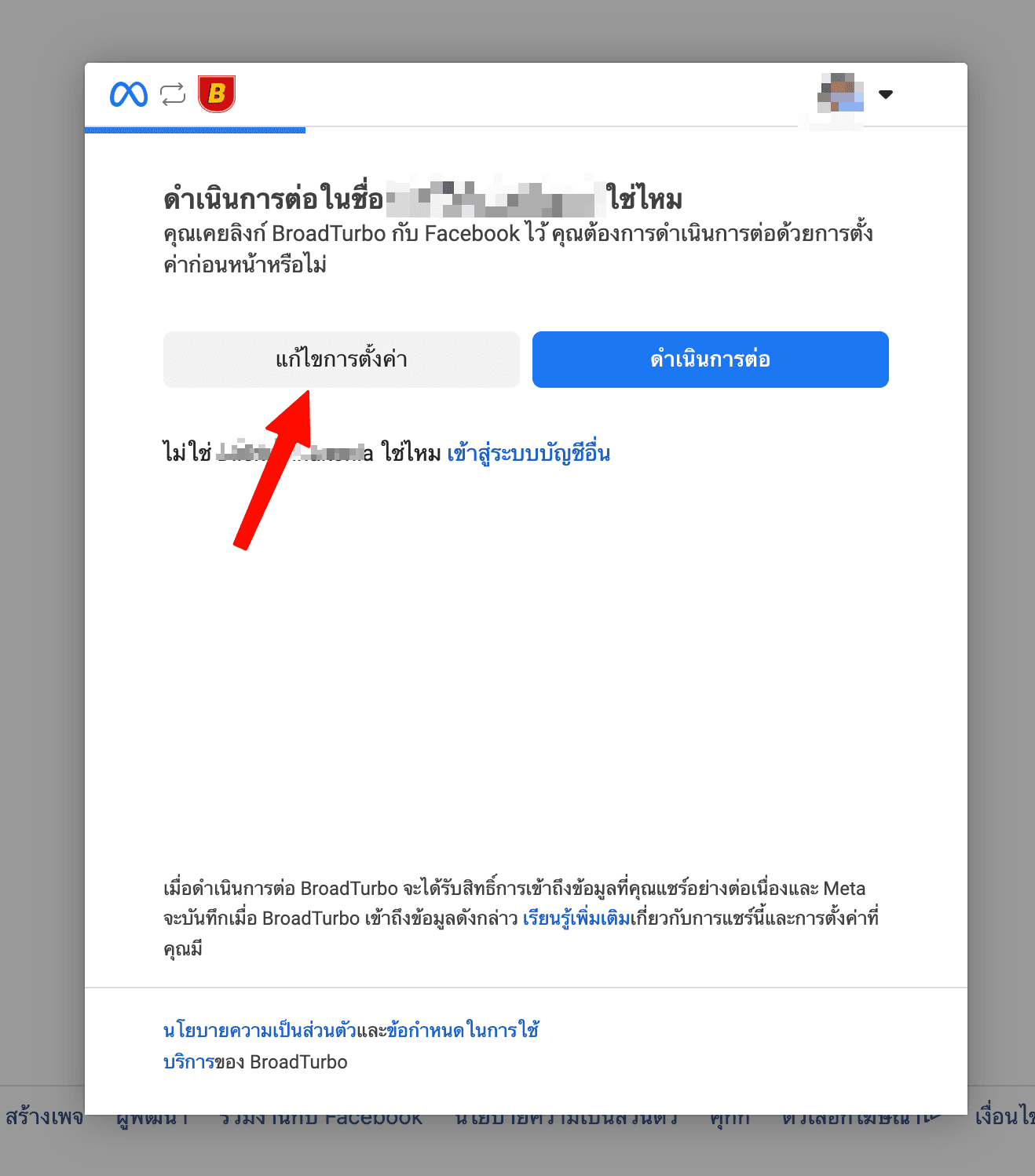
You will be taken to Facebook's permissions screen. Click Edit settings to choose your Pages again (don't click Continue, or the previous list of Pages will be used)
-
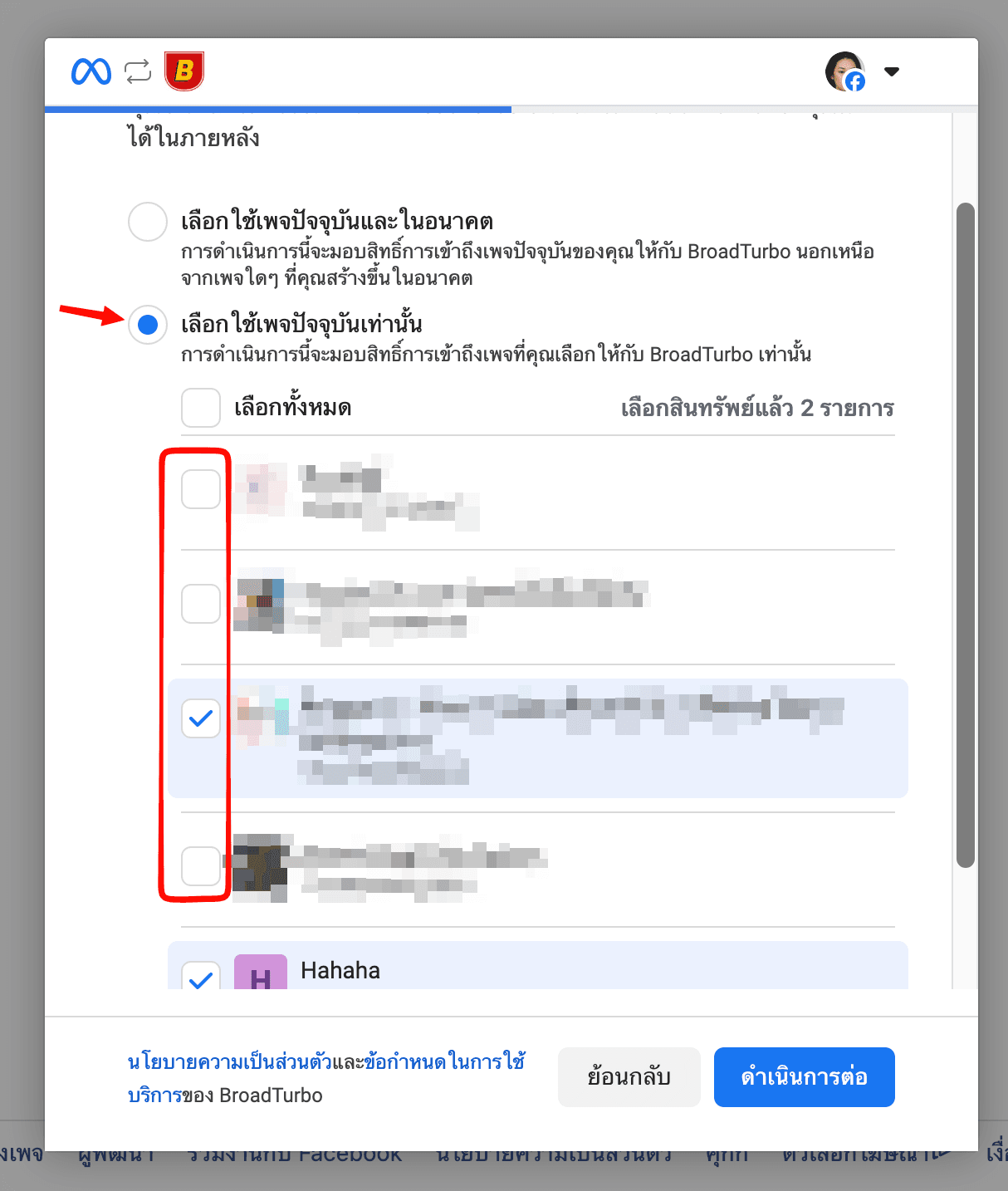
At the Page selection step, choose Opt in to current Pages only and tick only the Pages you still want to use with BroadTurbo. Any Page you untick will be disconnected. Then click Continue
-
At the business selection step, just click Continue
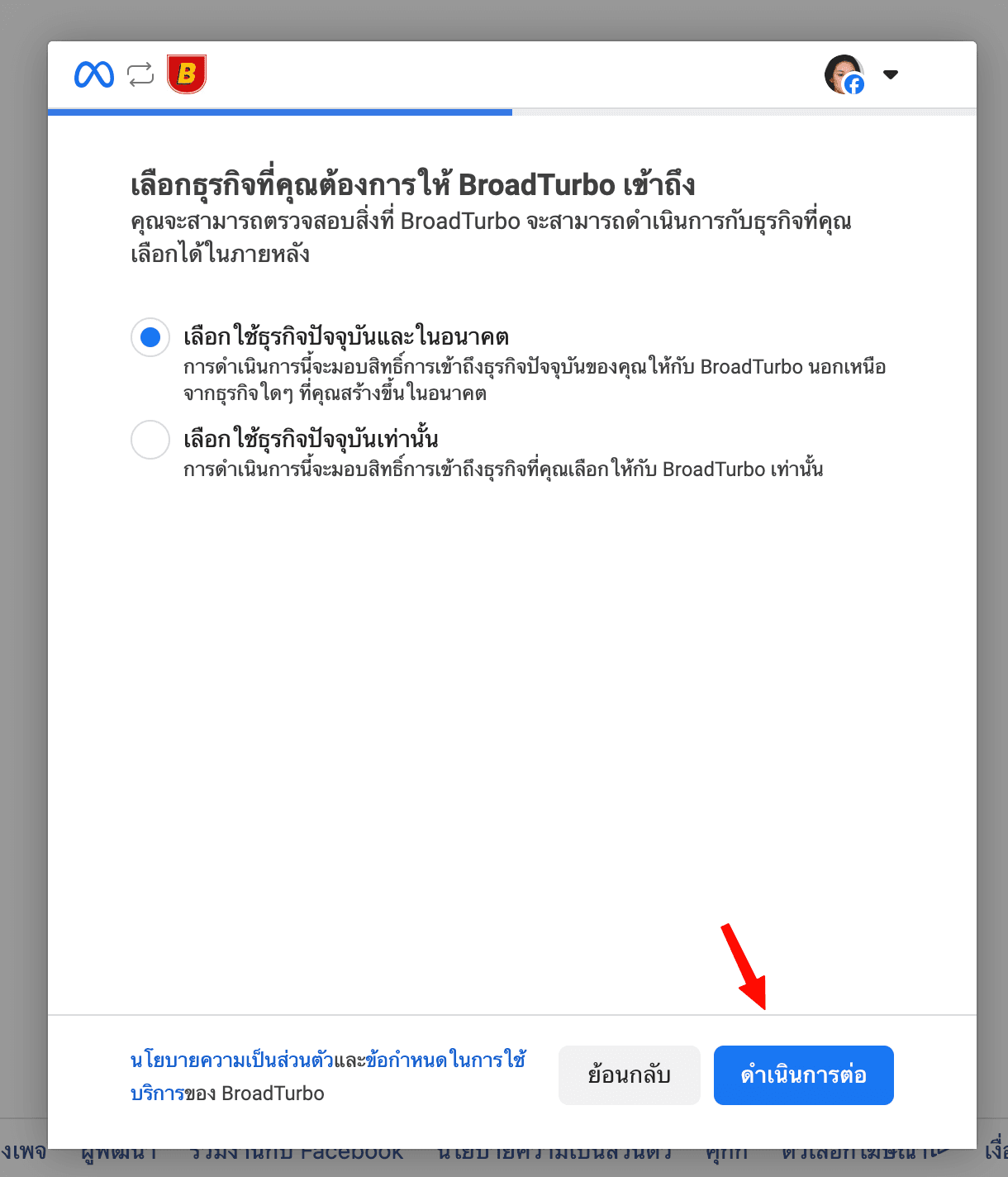
-
On the permissions review screen, click Save to confirm
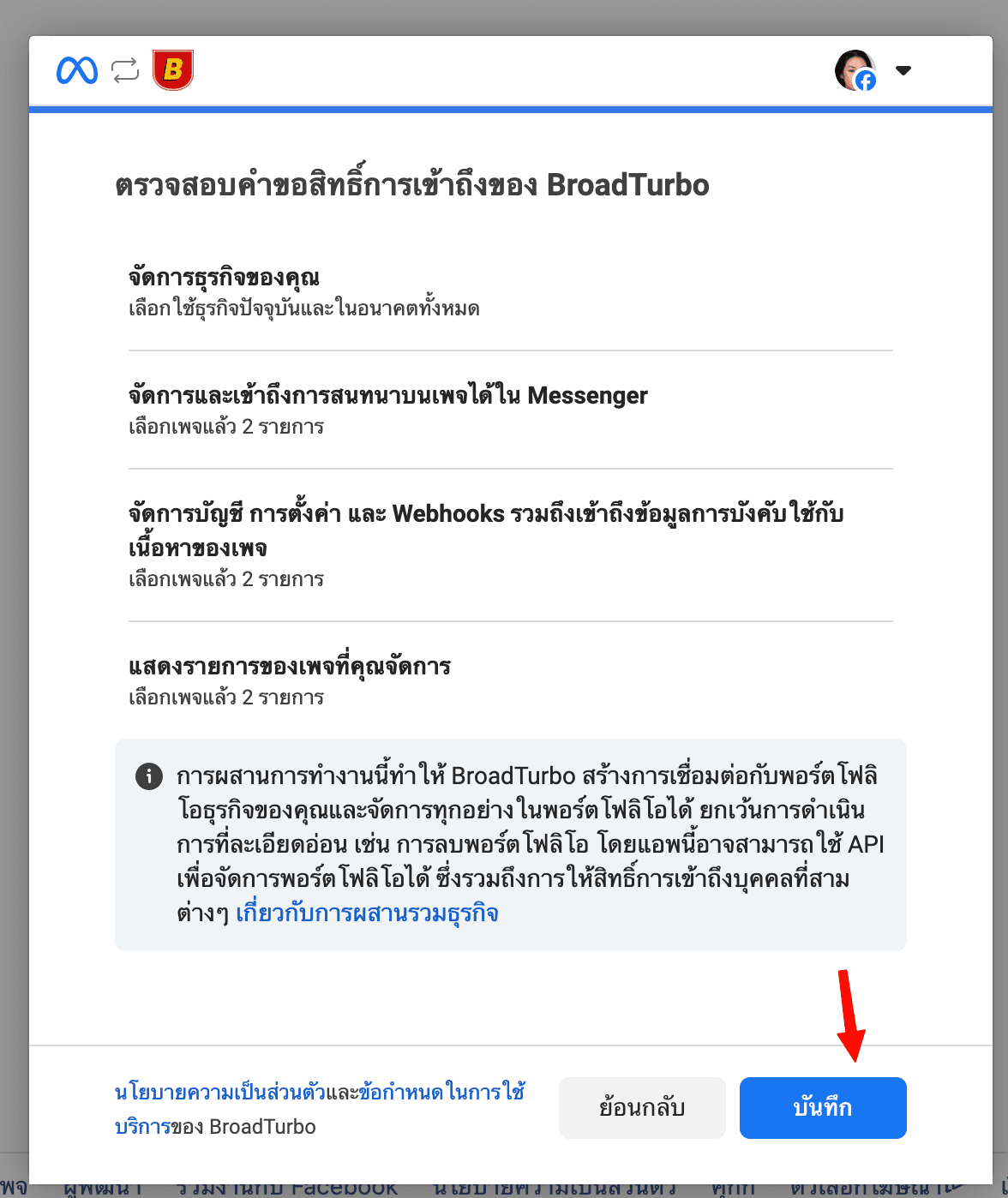
That's it. Back in BroadTurbo, the Page picker will list only the Pages you selected. If the list hasn't updated, click the Refresh Pages button below the Page picker.
Notes
- To add a Page back later, follow the same steps and tick the Page you want to add in step 4
- If you run into problems connecting, contact our team at https://line.me/R/ti/p/@884uugow